
Your credentialer handles your Medicare enrollment application, but there are two steps only you can do: giving them access to your account, and signing the application when it's ready. This guide walks through both.
Before You Start
PECOS (Provider Enrollment, Chain, and Ownership System) is what Medicare uses to manage provider enrollment. Your credentialer needs access to your PECOS account to submit and manage enrollment applications on your behalf.
Your PECOS access is managed through a separate login system called the CMS Identity & Access (I&A) system. If you set up your own NPI through NPPES, you already have an I&A account, it's the same login.
If someone else set up your NPI (a former biller, group practice admin, etc.), they may control the account, and the Forgot Password tools won't help you. Those flows key off the email address on the account, which isn't yours, so don't burn time there. The fastest fix is to contact whoever set it up and have them add you: as an Authorized Official on your company's profile, or by granting you access to your individual listing. If they're unreachable or unwilling, your listings are still recoverable through the CMS help desk, so talk to your credentialer, this is a normal situation with a known fix.
Expect to reset your password. If you haven't logged in for a while, the system will make you change your password before you can do anything else. The rules are strict and a little odd, if the system keeps rejecting your attempts, see the password question in the FAQ below.
Step 1: Give Your Credentialer Access to Your PECOS Account
You're authorizing your credentialer to view and update your Medicare enrollment. It does not give them the ability to sign anything, that's always you (more on this in the FAQ).
If you have a company (LLC, PLLC, group practice): your personal profile and your company profile are separate entities in the system, and each one needs access granted. The staff method below covers both in one pass; the other methods have to be done once per profile.
There are a few ways to set this up. Your credentialer will tell you which one they want, but here they are in the order I find most reliable.
The Most Reliable Way: Add Them as Staff
This one has never failed me. There's nothing to search for and no pending request to miss, the system emails your credentialer a registration PIN and they're attached to your account as soon as they use it.
- Log into the CMS Identity & Access system
- Click the My Staff tab, then Add Staff
- Enter their name and email
- Set the role they ask for. Either role can work in the systems you grant. An Access Manager can also manage staff and access for the entity, which is why credentialers often ask for it; a Staff End User is work-only
- The page lists every entity you have control of, one row each, with a checkbox per system. Check the rows for the entities you're granting (your personal listing, your company) and the columns for each system your credentialer asks for
- Submit
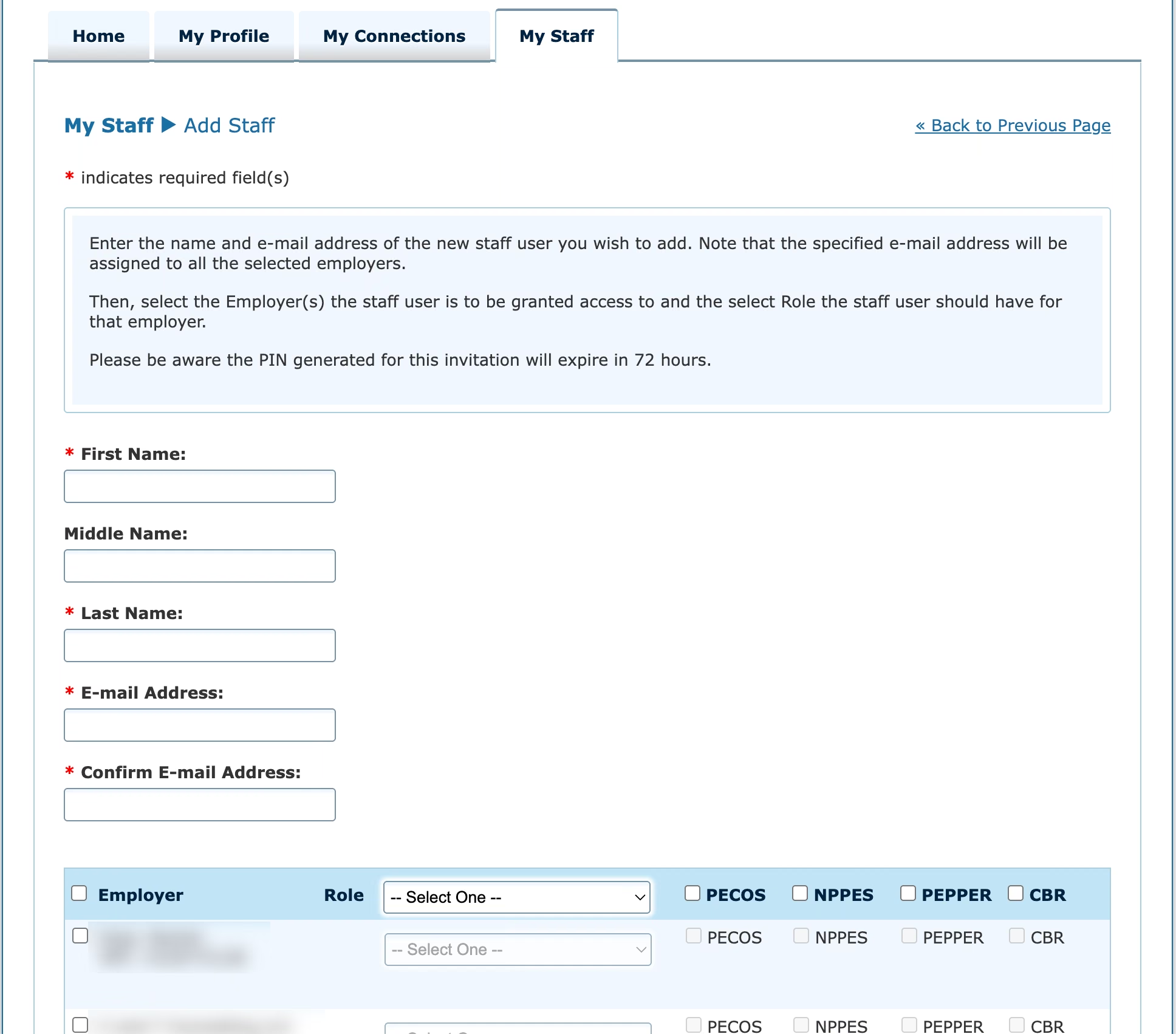
They'll get the invite by email and finish the registration from their end. One timing note: the PIN in that email expires after 72 hours, so do this on a day your credentialer is expecting it, not the Friday before their vacation.
Worth knowing: CMS designed the staff roles for people inside your practice, and the company route below for outside companies. A credentialer sits somewhere in between, part vendor, part back office. I default to the staff route because it works every time, but if you'd rather grant the access to their company than to them personally, the company route is the cleaner categorization.
The Company Route: Approve the Request They Send
Granting to the company works through a connection request (CMS calls the company a surrogate), and it usually starts on their side. Your credentialer sends the request, and you approve it:
- Log into the CMS Identity & Access system
- On the Home tab, look for My Pending Connections
- Check the boxes next to PECOS and NPPES for the request
- Click Approve All Selected
- If you have a company, approve the second request for your organizational profile the same way
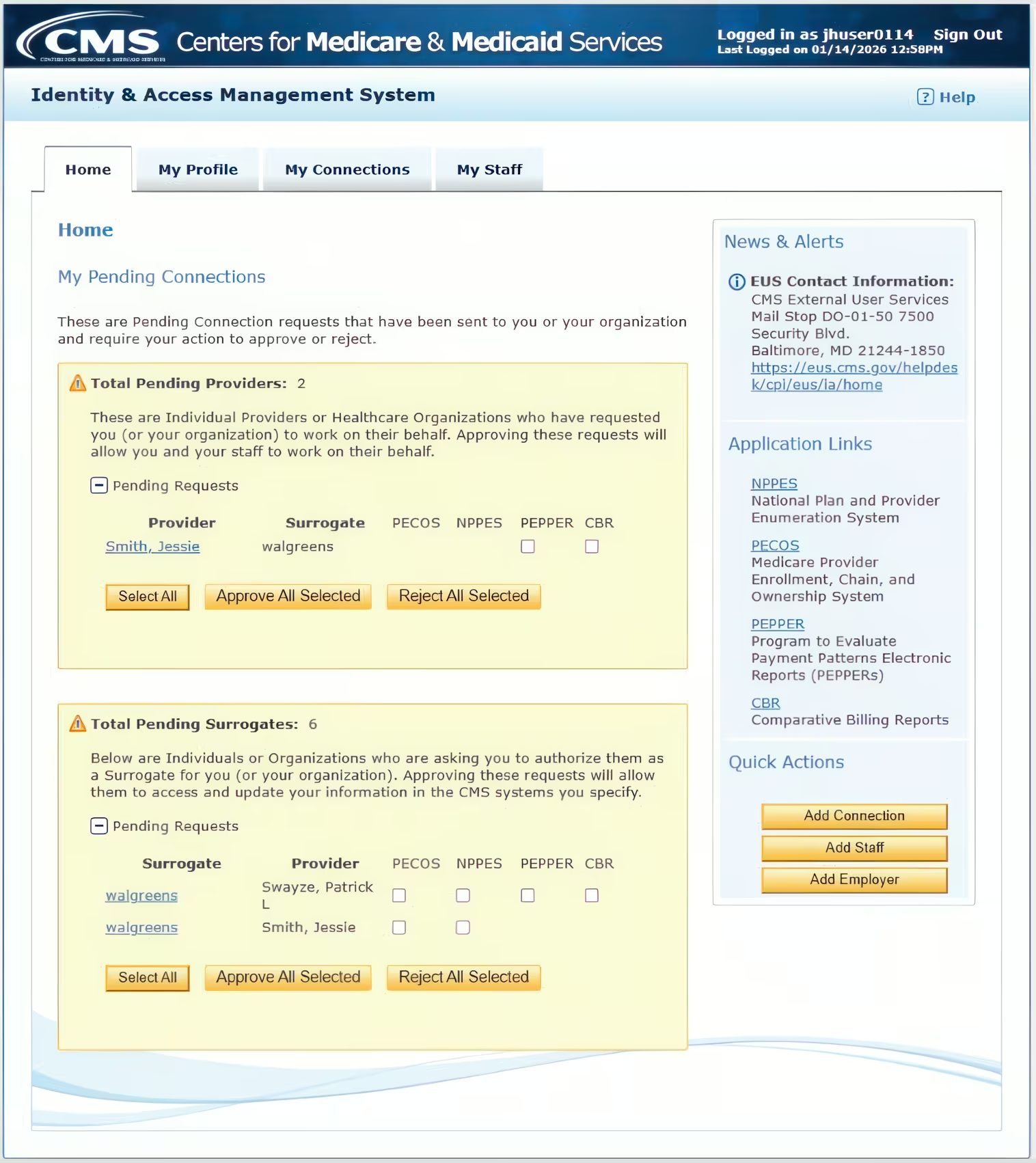
Two things to know. First, CMS does send a notification email when a request is pending, but it has a habit of landing in spam or getting lost in a busy inbox. Don't wait for it, log in and check when your credentialer says the request is out. Second, requests that aren't approved within 30 days are automatically rejected, so don't put this off. Ask your credentialer what name the request will show up under, it's the name of the organization they sent it from, and it may not be the name you know them by.
The Company Route, Started From Your Side
Same connection, opposite direction. If your credentialer asks you to initiate it, or their request never shows up, you can add their company yourself:
- Log into the CMS Identity & Access system
- Click the My Connections tab
- Click the + icon next to your name or NPI to expand it
- Click Add Surrogate
- In Organization Name, enter your credentialer's company name (or their NPI if they have one), click Search, and select them
- Check PECOS and NPPES
- Click Submit, then click Done on the review page
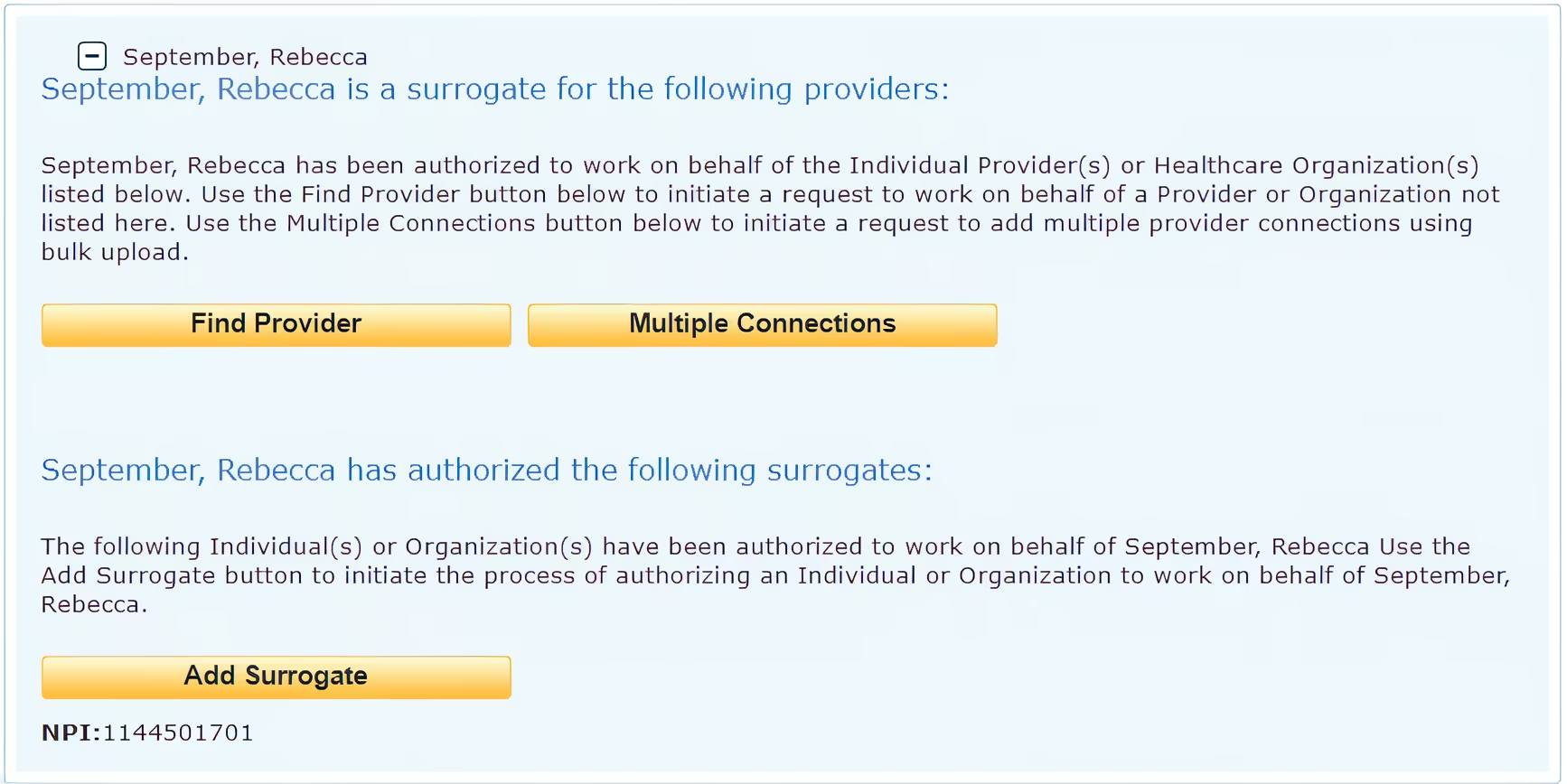
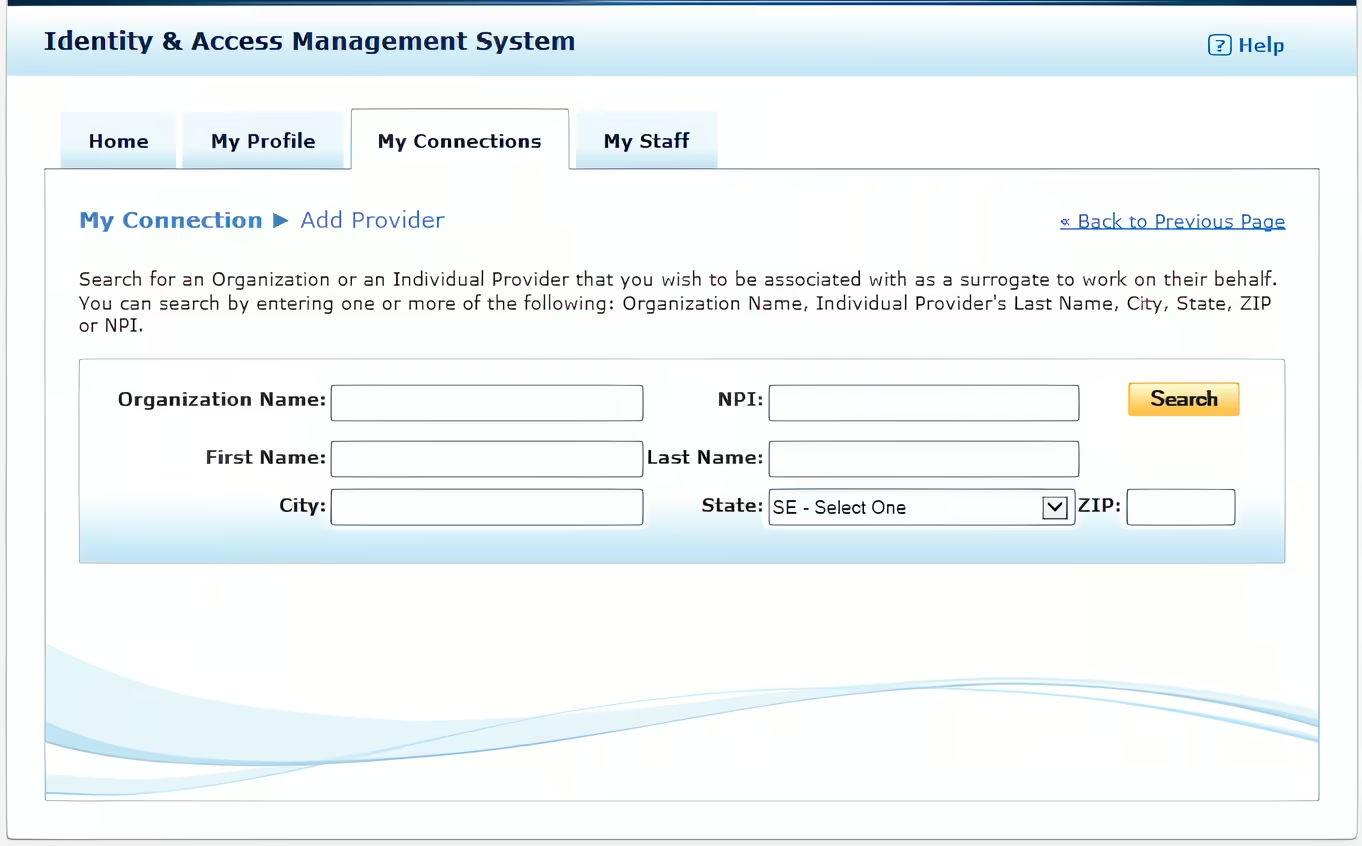
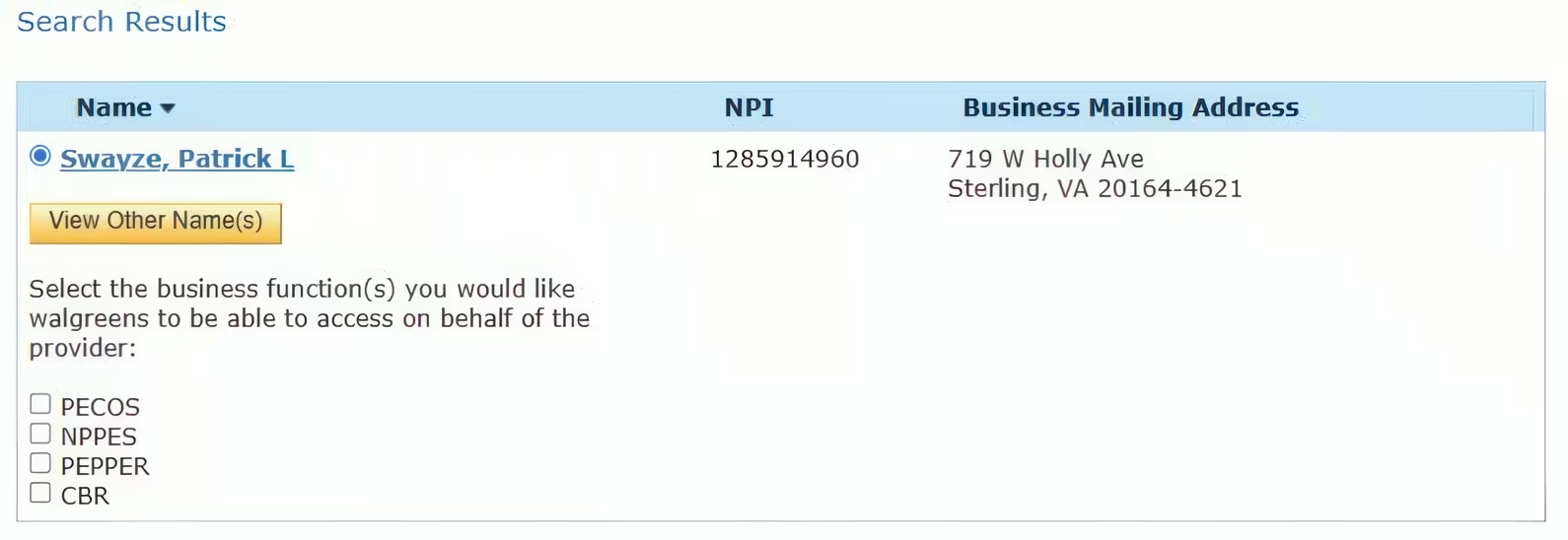
Their company is searchable by its name even if it doesn't have an NPI. If you can't find them, fall back to one of the first two methods.
If You Can't Log In at All: The One-Page Paper Option
If your I&A account is a lost cause right now (locked out, controlled by someone else, MFA going to a dead phone number), CMS built an escape hatch for exactly this. It's called the Optional Surrogacy Confirmation, and it skips the login entirely:
- Your credentialer generates a short confirmation form from their side
- You sign it, they sign it, and they submit it to CMS along with a copy of your photo ID
- CMS's help desk approves the connection on your behalf
No password reset, no MFA, no email link to chase. The last one of these I ran took about a week from submission to approval. It's only available for individual providers, though there's a similar help desk process for companies in the same spot. Either way it grants access only, you'll still sign your application yourself when the time comes.
Step 2: Sign Your Application When It's Ready
Once your credentialer submits your application in PECOS, CMS emails you to collect your signature. This often happens before your credentialer has had a chance to tell you themselves, so don't be surprised if it shows up first. The email includes a PIN, and there are two ways to use it.
If you can log into PECOS:
- Log into PECOS with your I&A credentials (same login as NPPES)
- On your home page, find the Manage Signatures section, it lists everything waiting on your signature
- Click View and Sign on the application
- Review and agree to the Terms and Conditions by checking the boxes, that's your electronic signature
- You'll see a confirmation that your signature was accepted
If you'd rather not deal with the login: the email also links to CMS's e-signature page, where the PIN gets you in directly, no PECOS password needed. Same View and Sign, same Terms and Conditions, same result.
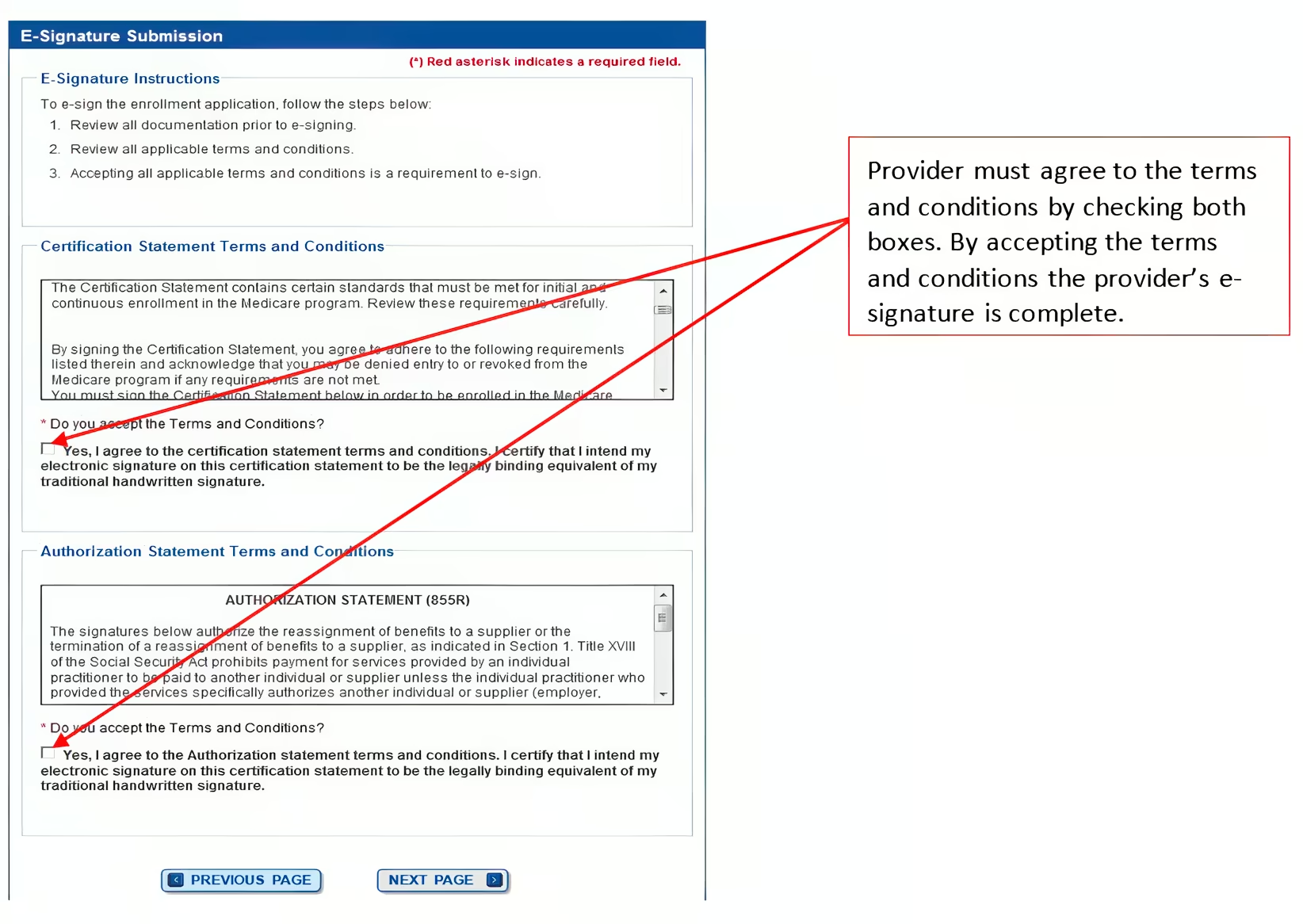
The PIN expires after 72 hours. If it lapses, your credentialer can resend the email, which issues a fresh PIN.
You may need to sign more than once. If anything on the application gets corrected after you sign, the correction voids your signature and a new one is required. This is normal, expect a second round on some applications.
Electronic vs. paper signatures: you can sign on paper, but electronic is the way to go. Paper means printing the signature page, signing it, and having your credentialer upload it, and every correction round requires a freshly generated page, the old printout becomes invalid the moment the application changes. What's a couple of clicks electronically turns into another print-sign-upload cycle on paper, and your enrollment waits while that happens.
Common Questions
What is PECOS?
PECOS (Provider Enrollment, Chain, and Ownership System) is the online system Medicare uses to manage provider enrollment. It's where your Medicare enrollment application lives.
Do I need an account if I already have an NPI?
Yes, but you probably already have one. Your NPI was created through NPPES, which uses the same login system (I&A). Try logging in at nppes.cms.hhs.gov with the credentials you used when you applied for your NPI. If someone else applied for it, see the note in Before You Start, the account may be theirs to unlock.
Why won't it accept my new password?
The rules are strict, and a few of them surprise people:
- 8 to 12 characters. That's a maximum, not a minimum, so a password manager's default 20-character output won't fit.
- At least one letter, one number, and one special character from CMS's allowed list (most of the common ones work, some don't).
- Can't start with a number, can't contain three repeating characters, can't contain your name or your user ID.
- It has to differ from your old password by at least 6 characters, and it can't match any of your last 6 passwords.
One more that bites after the fact: you can only change your password once every 24 hours. If you rush a reset and end up with something you can't remember, you're stuck with it until tomorrow. Decide on a good password before you start, not while the form is in front of you.
How long does this take?
The staff invite and the approve-a-request paths are both active within minutes of the final click, so it mostly comes down to when you log in. The paper option for locked-out providers takes about a week.
Can my office manager do this for me?
It depends on their role on your record, and the title "office manager" doesn't tell you which one they have. An Authorized Official can do all of it. An Access Manager can do most of it but can't grant someone the Access Manager role (only an Authorized Official can). A Staff End User can't grant access at all. So check their actual role first, and if it's Staff End User, this step falls to you or to whoever holds Authorized Official on your record.
What does this access let them do?
It depends on which boxes get checked. The PECOS box lets them view and update your Medicare enrollment. The NPPES box lets them keep your NPI record current too, addresses, taxonomy, directory info, which is usually the point of granting it. If you'd rather they touch only your enrollment, grant PECOS alone, the access is scoped per checkbox.
The one thing no access level allows: signing. CMS is explicit that a surrogate may not sign an application on your behalf, electronically or otherwise. Every signature comes from you.
Can I just give my credentialer my login instead?
CMS's login page states that sharing login information is prohibited, so this isn't recommended. Your account also uses multi-factor authentication, which means you'd need to be available to provide verification codes while they're logged in. Since you'll need to log in yourself later to sign your application anyway (or use the PIN email), it's better to grant access through one of the methods above.
I have a company. Do they need access to both?
Yes. If you have an LLC, PLLC, or group practice with its own NPI, your credentialer needs access to both the organizational profile and your individual provider profile. They're separate entities in the system. The staff method grants both from one screen (check off both rows); the request and surrogate methods need a separate grant for each.
New to credentialing? Start with our getting started guide to make sure your setup is complete.
Need help with Medicare enrollment? Contact me and I'll walk you through the process.